
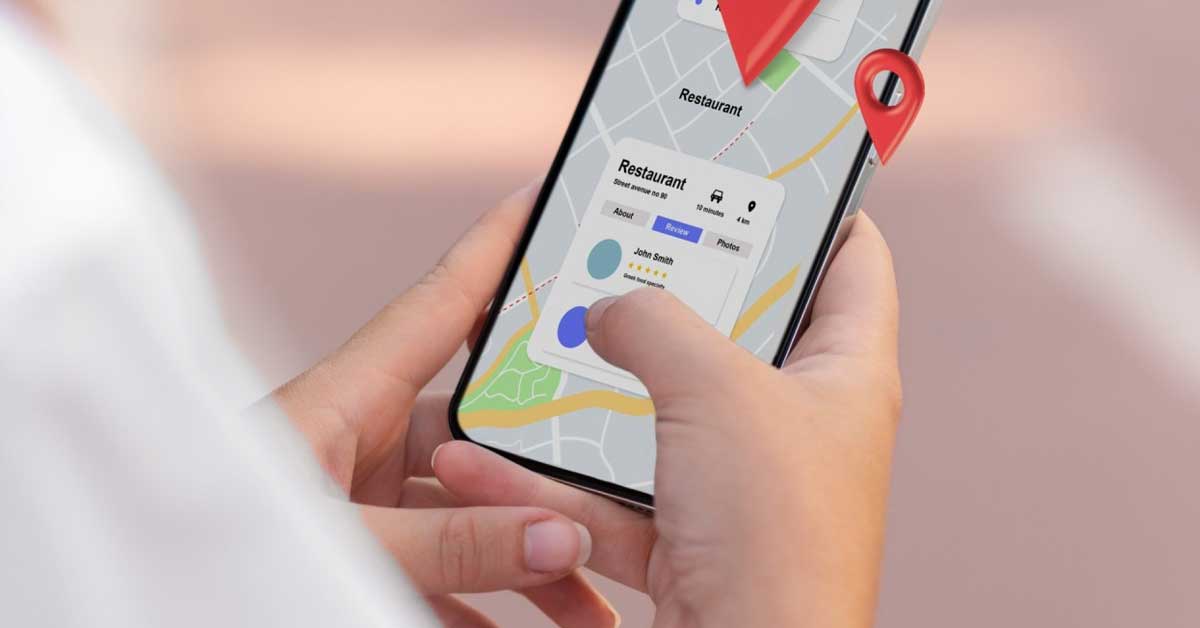
Location-aware apps have become an integral part of our daily lives, providing valuable services such as navigation, ride-hailing, fitness tracking, and more. Core Location is Apple’s powerful framework that allows developers to build these apps efficiently on iOS. This guide will explore the essential aspects of building location-aware apps using Core Location, ensuring your app is both functional and user-friendly.
Introduction to Core Location
Core Location is a framework in iOS that provides services to determine the user’s geographic location, altitude, and orientation, or to monitor device movement. It offers high-accuracy location data, geofencing capabilities, and background location updates, making it a versatile tool for developers.
Setting Up Core Location
To get started with Core Location in your iOS app:
- Add Core Location Framework: Include the Core Location framework in your project. You can do this by adding
import CoreLocationat the top of your Swift file. - Request Location Permissions: Ensure your app has the necessary permissions to access location data. Add the appropriate keys to your
Info.plistfile:NSLocationWhenInUseUsageDescriptionfor location access while the app is in the foreground.NSLocationAlwaysUsageDescriptionfor location access even when the app is in the background.
- Create Location Manager: Instantiate a
CLLocationManagerobject in your view controller to manage location updates.
swift
import CoreLocation
class ViewController: UIViewController, CLLocationManagerDelegate {
let locationManager = CLLocationManager()
override func viewDidLoad() {
super.viewDidLoad()
locationManager.delegate = self
locationManager.requestWhenInUseAuthorization()
}
}
Implementing Location Updates
To handle location updates, you need to set up the CLLocationManager and implement its delegate methods.
- Start Location Updates: Start receiving location updates by calling
startUpdatingLocationon yourCLLocationManagerinstance.
swift
locationManager.startUpdatingLocation()
- Handle Location Updates: Implement the
didUpdateLocationsdelegate method to receive location data.
swift
func locationManager(_ manager: CLLocationManager, didUpdateLocations locations: [CLLocation]) {

if let location = locations.last {

print("Location: \(location.coordinate.latitude), \(location.coordinate.longitude)")

}

}
- Handle Errors: Implement the
didFailWithErrormethod to handle errors in location updates.
swift
func locationManager(_ manager: CLLocationManager, didFailWithError error: Error) {

print("Failed to find user's location: \(error.localizedDescription)")

}
Geofencing with Core Location
Geofencing allows your app to define geographical boundaries and trigger actions when the user enters or exits these regions.
- Create Geofence: Define a geofence region using
CLCircularRegion.
swift
let geofenceRegionCenter = CLLocationCoordinate2D(latitude: 37.3349285, longitude: -122.011033)

let geofenceRegion = CLCircularRegion(center: geofenceRegionCenter, radius: 100, identifier: "ApplePark")

geofenceRegion.notifyOnEntry = true

geofenceRegion.notifyOnExit = true
- Start Monitoring Geofence: Start monitoring the defined geofence region.
swift
locationManager.startMonitoring(for: geofenceRegion)
- Handle Geofence Events: Implement delegate methods to handle geofence events.
swift
func locationManager(_ manager: CLLocationManager, didEnterRegion region: CLRegion) {

if region.identifier == "ApplePark" {

print("Entered Apple Park")

}

}if region.identifier == “ApplePark” {
print(“Exited Apple Park”)
}
}
Background Location Updates
To keep receiving location updates even when the app is in the background, enable background location updates:
- Enable Background Mode: In your project’s Capabilities section, turn on Background Modes and select Location updates.
- Request Always Authorization: Ensure your app requests
alwaysauthorization for location access.
swift
locationManager.requestAlwaysAuthorization()
- Allow Background Updates: Set
allowsBackgroundLocationUpdatestotrue.
swift
locationManager.allowsBackgroundLocationUpdates = true
Optimizing Location Services
Optimizing location services is crucial for balancing accuracy and battery consumption:
- Desired Accuracy: Set the
desiredAccuracyproperty based on your app’s needs.
swift
locationManager.desiredAccuracy = kCLLocationAccuracyBest
- Distance Filter: Use the
distanceFilterproperty to specify the minimum distance (in meters) a device must move before an update is triggered.
swift
locationManager.distanceFilter = 10
- Activity Type: Set the
activityTypeto improve location updates based on the type of activity (e.g., automotive, fitness).
swift
locationManager.activityType = .automotiveNavigation
Conclusion
Building location-aware apps with Core Location in iOS involves setting up location services, handling location updates, implementing geofencing, and optimizing for performance and battery life. By leveraging Core Location’s robust features, you can create apps that provide valuable, location-based services to users.
Whether you’re developing a navigation app, a fitness tracker, or a location-based service, mastering Core Location will enable you to deliver a seamless and responsive user experience. Embrace these best practices to harness the full potential of location services in your iOS applications.

Comments are closed