
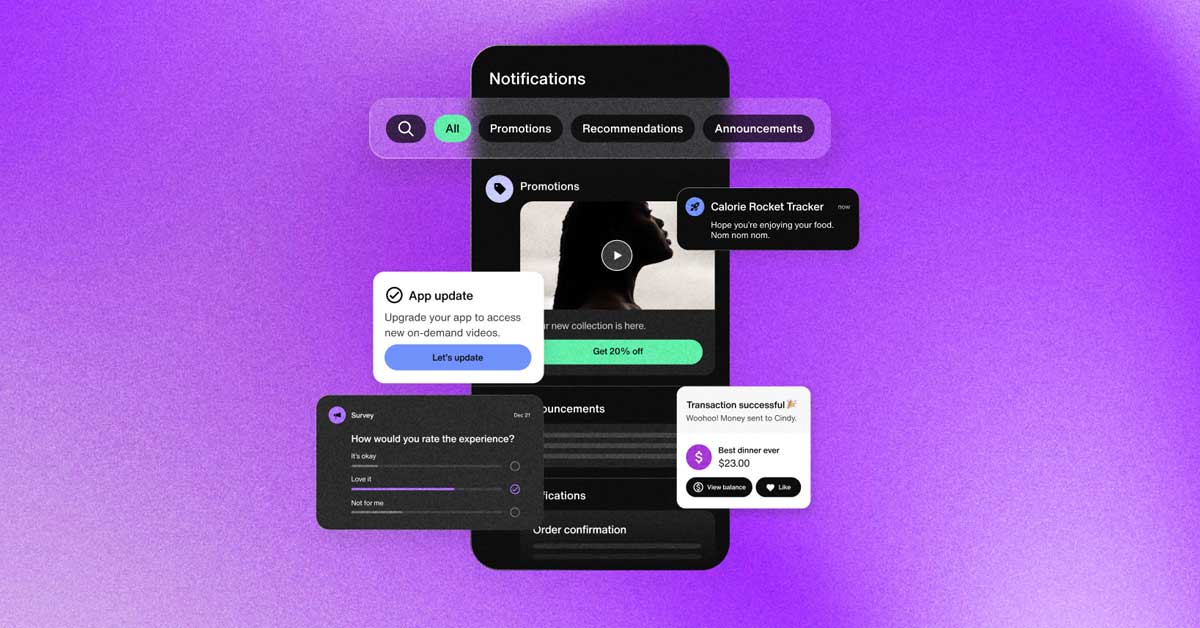
In the modern digital ecosystem, keeping users informed in real-time is crucial. Whether it’s for breaking news, reminders, or updates, sending notifications and alerts from web to desktop can significantly enhance user engagement and experience. This comprehensive guide will explore the various methods and best practices for implementing desktop notifications from web applications.
Understanding Desktop Notifications
What Are Desktop Notifications?
Desktop notifications are brief messages that appear on a user’s desktop, outside the web browser, even when the website or web application is not active. They are useful for providing timely information and keeping users engaged without interrupting their workflow.
Benefits of Desktop Notifications
- Immediate User Engagement: Capture the user’s attention instantly with real-time updates.
- Improved User Retention: Keep users informed and engaged, increasing the likelihood of return visits.
- Enhanced User Experience: Provide valuable information at the right moment without requiring users to be on your website.
Methods for Sending Web Notifications to Desktop
1. Web Push Notifications
Web push notifications are a popular method for sending alerts from a web application to a user’s desktop. They work even when the user is not actively browsing the website.
How to Implement Web Push Notifications
- Service Workers: Service workers are scripts that run in the background, independent of the web page. They handle push messages and display notifications.
- Push API: This API allows your web application to receive push messages from a server.
- Notification API: This API displays notifications to the user.
Step-by-Step Implementation
- Register a Service Worker:
if ('serviceWorker' in navigator) {

navigator.serviceWorker.register('/service-worker.js').then(function(registration) {

console.log('Service Worker registered with scope:', registration.scope);

}).catch(function(error) {

console.error('Service Worker registration failed:', error);

});

}
- Request Notification Permission:
Notification.requestPermission().then(function(permission) {

if (permission === 'granted') {

console.log('Notification permission granted.');

} else {

console.log('Notification permission denied.');

}

});
- Subscribe to Push Service:
navigator.serviceWorker.ready.then(function(registration) {

registration.pushManager.subscribe({

userVisibleOnly: true,

applicationServerKey: 'YOUR_PUBLIC_VAPID_KEY'

}).then(function(subscription) {

console.log('User is subscribed:', subscription);

}).catch(function(error) {

console.error('Failed to subscribe the user:', error);

});

});
- Handle Push Events:
self.addEventListener('push', function(event) {

const data = event.data.json();

const options = {

body: data.body,

icon: 'icon.png',

data: { url: data.url }

};

event.waitUntil(

self.registration.showNotification(data.title, options)

);

});
- Handle Notification Clicks:
self.addEventListener('notificationclick', function(event) {

event.notification.close();

event.waitUntil(

clients.openWindow(event.notification.data.url)

);

});
2. Desktop Alerts via Electron
For applications that require more control over desktop notifications, Electron provides a framework for building cross-platform desktop apps with web technologies.
How to Implement Desktop Alerts with Electron
- Set Up Electron Project:
npm install electron
- Create Main Process File (
main.js):const { app, BrowserWindow, Notification } = require('electron');function createWindow() {
let win = new BrowserWindow({
width: 800,
height: 600,
webPreferences: {
nodeIntegration: true
}
});win.loadFile(‘index.html’);
}app.on(‘ready’, createWindow);
function showNotification() {
const notification = {
title: ‘Basic Notification’,
body: ‘Notification from the Main process’
};
new Notification(notification).show();
}app.whenReady().then(showNotification);
- Create HTML File (
index.html):
<html>
<head>
<title>Electron Notification</title>
</head>
<body>
<h1>Hello, Electron!</h1>
</body>
</html>
3. Browser Notifications
Using the Notification API, you can send simple notifications directly from your web page to the desktop.
How to Implement Browser Notifications
- Request Permission:
if (Notification.permission === 'default') {

Notification.requestPermission().then(function(permission) {

if (permission === 'granted') {

new Notification('Notification enabled');

}

});

}
- Send Notification:
if (Notification.permission === 'granted') {

new Notification('Hello, World!', {

body: 'This is a notification from your web app.',

icon: 'icon.png'

});

}
Best Practices for Sending Notifications
1. Respect User Preferences
Always request permission before sending notifications and provide users with easy options to manage their notification preferences.
2. Keep Notifications Relevant
Ensure that the content of your notifications is relevant and valuable to the user. Avoid sending excessive or irrelevant alerts, as this can lead to users disabling notifications.
3. Timing Matters
Send notifications at appropriate times to maximize engagement and avoid interrupting users during inconvenient moments.
4. Provide Clear Calls to Action
Include clear and actionable content in your notifications to guide users on what to do next.
5. Monitor and Optimize
Use analytics to track the performance of your notifications. Monitor delivery rates, click-through rates, and user engagement to optimize your notification strategy.
Conclusion
Sending notifications and alerts from web to desktop is a powerful way to enhance user engagement and ensure real-time communication. By leveraging web push notifications, Electron, or browser notifications, you can deliver timely and relevant information to your users. Remember to follow best practices to respect user preferences, keep notifications relevant, and optimize your strategies for maximum effectiveness. Implement these methods today to take your user engagement to the next level.

Comments are closed